In my release-day review of Apple’s Mac OS X Lion, I shared my initial impressions of the operating system while highlighting the key differences from previous versions. I also pointed some features users might not like. Now, two weeks later, I am much more appreciative of OS X Lion and wondering how I lived without certain features, such as full-screen mode. There are still some things I am not too fond of, but overall I have a much more favorable view of the new OS X after spending two weeks with it.
1. Full-Screen & Spaces Magic
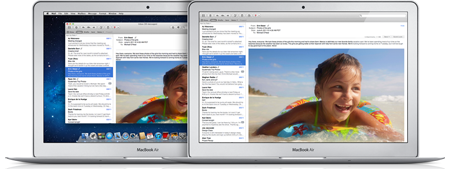 Apple originally released Spaces with Mac OS Leopard 10.5, but until OS X Lion 10.7 I had never really used it. Spaces utilizes multiple virtual desktops in which to launch applications. The beauty of Apple’s implementation of full-screen mode is that it auto-magically creates and removes Spaces as the user switches into and out of full-screen mode. As a developer, I’m impressed by the clever re-use of existing functionality in an entirely new way. As a user, I like the new interface and beauty with which it works.
I was in the Apple Store over the weekend and compared the new 11″ MacBook Air running Safari in full-screen mode with a 13″ MacBook Air running the same application in windowed mode. Surprisingly, the height of the window was nearly the same. By introducing full-screen mode, Apple has essentially increased the screen size of all existing Macs, making the 11″ feasible as a true laptop replacement for the first time.
The addition of full-screen mode throughout the OS is probably the single most important feature Apple has release in OS X Lion. I only wish more third party applications, such as Microsoft Office and TextMate (the best Mac text editor) supported it automatically, but we will have to wait for a software update from the vendors. For those using Eclipse, Alex Blewitt has provided an unofficial update to support full-screen mode in OS X Lion that works perfectly in Eclipse 3.7 Indigo, although unfortunately not in previous versions of Eclipse. There is some concern that large manufacturers, like Adobe and Microsoft, could charge an upgrade fee for the next version that includes full-screen support, but this is up the individual vendors to decide.
2. New Mail App
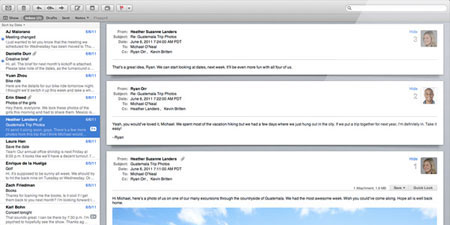 In my initial Mac OS X Lion review, I indicated that I liked the Mail application, but did not go into much detail. After two weeks of using it, I’ve come to the realization that I love the streamlined, full-screen interface. It makes reading mail much simpler and less cumbersome than most modern mail applications, such as Mozilla Thunderbird or Microsoft Outlook. Also, I really like the conversations interface, borrowed a bit from Google’s Gmail web interface, which shows related messages, including your replies, in a single vertical view. Overall, this makeover makes for a much more solid, user-friendly application.
3. New Multi-Touch Gestures
The new 3-finger gestures are quite fun to use, such as pinching to make the Launchpad appear, or sliding the current page back in Safari, as an alternative to the back button. While it is getting a little difficult to remember all the different gestures available, they are playful and add a new level to the Mac. I have noticed some novice users trip up on multi-touch gestures though. For example, a particular family member of mine accidentally zoomed out on her Desktop resulting in all of the desktop icons shrinking to an unusable size. I would recommend that Apple turns off many of the advanced multi-touch gestures and enables them gradually and with the user’s permission, so that less skilled users understand how they work better.
4. All My Files: The Onion Prophecy Comes True!
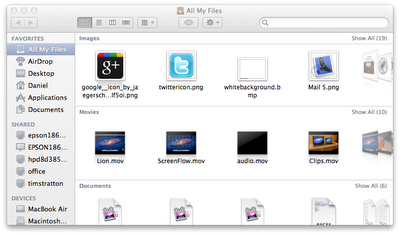 Over two years ago, The Onion released a video showing a mock MacBook Wheel laptop, in which the entire keyboard is replaced by a single button, in part to mock Apple’s reliance on single-button hardware. In the video [at 1:06], they show a user searching their computer with all of the files in a single folder. Apparently, someone at Apple was taking notes, because the new version OS X Lion comes with an “All My Files” option in the finder menu. If you are like me, and have thousands of documents, I have no idea when this feature would ever be useful. In fact, if you use iPhoto and iTunes to manage all of your photos and music, there is never a reason to include them in this window. Overall, this feature seems like a last minute addition by an unskilled developer that probably should have never made it to the final build. You can turn this feature off by either right-clicking on it and removing it from the Sidebar, or unchecking the option in Finder -> Preferences -> Sidebar. Since it found thousands of useless icons and web files, I turned this feature off after a week as I decided it was a complete waste of time for anyone with more than a few dozen content items on their computer.
5. The Leftovers: What’s still bad
After reflecting on the topic, I’ve come to realize Mission Control, while useful, is so much like Exposé, that Apple really shouldn’t be highlighting this as a brand new feature. Perhaps not enough people were using Exposé, but this feels like a completely recycled feature with nothing of value added.
As for Natural Scrolling, in which they reversed horizontal and vertical scroll directions in OS X Lion, one person suggested they were trying to make a consistent interface with the iPad. If Apple ever does release a touch-screen Mac, this would certainly be the ground work for it. I decided to re-enable the natural scrolling following launch day and ultimately, it makes no difference to me which method I use. I still contend changing a major component of a user interface without explicitly informing the user is a horrible idea, as it tends to confuse the less-informed user base.
Finally, if you are Rosetta user who depends on older versions of applications, you may want to postpone upgrading at this time. I still content Microsoft Office 2004, which no longer works in OS X Lion, is the best version of Office released for Mac in the last decade due to its exclusion of the annoying ribbon, and inclusion of scripting support removed in Microsoft Office 2008. Users of Adobe CS2 or earlier, or those Photoshop CS3/CS4 users that rely on Droplets for batch processing, should likewise wait, as these products no longer function in OS X Lion and Adobe products can be quite pricey to replace. Unfortunately, Adobe has announced that it will not be providing Droplet support for CS3/CS4 users.
Minor Installation Woes
Having experienced serious installations issues on release day with Snow Leopard, I am pleased to report the installation of OS X Lion amongst my family members went almost entirely without problems. One computer did have a minor issue in which it restarted in Lion Recovery mode following the first reboot part of the installation. I needed to select the built-in hard drive as the Start Up disk, reboot the computer, then restart the entire installation. This solution worked, and have not seen any other installation issues.
Conclusion
The performance issues that I reported in my first review of OS X Lion eventually subsided, although it took all day. Between Spotlight indexing the entire hard drive and Time Machine backing up all of the changes, my computer was so hot I couldn’t touch it for hours after installation. Since then, the performance has been about the same as in 10.6 Snow Leopard, the previous version of Mac OS X. At this point, I am changing my satisfaction with OS X Lion from 35% previously reported to 90%, with the bulk of it stemming from the new full-screen mode that makes an 11″ MacBook Air perform like a 13″ MacBook Air.
There are still some rough edges, but overall this update is a welcome change and, unless you are one of those unfortunate users dependent on a Rosetta application, it is no-brainer upgrade at a $30 per household and a nearly error-free installation.