
M3d+ (Micro3D Plus)

I bought a M3D printer earlier in the year. M3D offered an inexpensive trade in for the Micro Plus.

FedEx the original

They sent a FedEx label where FedEx lost the package. Seriously, here’s what happened:

  • Drop up from my neighborhood Fed Ex store over weekend (in September)
  • Picked up (the following Monday)
  • Arrived at FedEx location in Long Island City (that same Monday)
  • Left FedEx origin facility in Long Island City (that same Monday)
  • And then nothing. It disappeared in their possession.

I didn’t notice for a while because I assumed it would take a number of weeks for M3D to send the new one. They had a lot of trade ins to deal with after all. Then I had two trips and wasn’t home. When I got home and still no printer, I checked on the status and learned it was missing. I filed a FedEx claim and also emailed M3D asking what to do. After all, I’d be out the upgrade fee if I had to buy a new one with the FedEx claim. And be printer-less for even longer.

M3D was awesome. They sent me the upgraded model from the trade in without having received the original. So now I have my new printer and am still waiting to hear back from FedEx. They can send M3D a check when the finally get around to it!

Setup

There’s different software for the Micro+ so I reinstalled. It no longer says the software is beta.  They still don’t sign the software. I had to do “control open” on my Mac because it said the software was from an unidentified developer. After plugging it, I got prompted to update the firmware on the printer.

The printer verifies you removed the gantry clips and guides you through inserting the “ink.” Unlike the old model, I got prompted with two questions:

  1. Is the roll of filament micro and pro? I picked micro. (but it is really a third party larger roll)
  2. Is the roll new? I picked no. The printer said it didn’t remember the roll so would treat as new,

I’m a little worried that the printer remembering how much filament is left is going to be a problem since I am using third party filament. The printer will think the roll is done, but it won’t be. Since I don’t print more than a micro sized roll in one shot, I think I’ll just always pick new.

Like last time, it took three tries for the filament to come out. There was a bubble at first, but no white initial filament.

On my first job, the filament was printing only little thin stringy segments. I realized that instead of white initial filament, it was black factory filament as a default. Since I was testing with black/gray, I didn’t notice right away. After I removed/inserted a few times, it ran through that initial test filament and all was well.

My mistake in testing

I didn’t read the instructions because I’ve been using the old M3D and “knew” what to do. I forgot to do the initial calibration with the new printer. Oops. That explains why my first few tests failed. It took a calibration and two test borders before the output became normal.

Testing

The Micro Plus has some new features. You can clone the model to print more than one in a shot (presuming it is small.) You can set custom quality profiles. You can save print jobs with your configuration.

And it has untethered printing! It’s an option you can check off in a print job. Now the first step is that the software saves the job to the printer itself. Then it does the usual processing/calibrating/printing.

The untethered printing is listed a development feature rather than a full fledged feature. But it works. If you untether from your laptop, it continues printing. If you plug back in the USB, it gives you the status on percentage/time to completion.

One thing I noticed is that “reset” is where you’d expect an “ok” button to be and print is all the way on the left. That’ll take a few tries to get used to!

The results

I printed using M3D filament and third party filament. Both worked the same way as on my old printer after calibration. Except that I can use my computer without being near the printer while printing long jobs. And that is awesome!
 

chromebook and att wifi – part 2

Two years ago, I set up my mother with an AT&T 4G wifi hotspot. Overall, she is happy with it. The hardware is starting to get less than optimal. It doesn’t keep a charge as long. I think a wire needs replacing. It shut down randomly twice. Since it is two years old, I decided to buy a new one for her and keep the old one for me to play with.

The price came down. Without a contact, the ATT Velocity hotspot is now $60. (two years ago it was $150). And this time, I could buy it from BestBuy rather than AT&T. A far easier buying experience. No shipping so sent right to me.

Setting up an account

Since I bought the hotspot from BestBuy rather than AT&T, I had to set up my own account online. Hardly difficult. The steps:

  1. Go to http://att.com/activateprepaiddata
  2. Enter the SIM number – this is listed as the ICCID on the bottom of the box
  3. Enter IMEI number – this is on a sticker inside the phone (easy to see before putting in the battery). It’s also on the bottom of the box.
  4. The zip code of the user – I used my mother’s
  5. Enter user’s email. I used my mother’s
  6. Pick a plan. I chose the same plan I had before. $25/month for 2GB
  7. Sign up for autopay
  8. Choose a password
  9. Then I went to manage account to set up a name. I repeatedly got “We seem to be experiencing system issues. Please try again later.” on saving. It was true though. I waited 5 minutes and then it saved.

Trying out the hotspot

The battery/case comes separated so I put that together. The device tells you the charge, connection strength and whether you have any new messages. Unlike last time, I didn’t have any messages right away. I had the flashing green light and six messages once I signed up for automatic payment.

New since last time – the device appears to tell you how much bandwidth was used up. This is an illusion. Once I started using data, it directed me to the web for this.

It still shows the number of connected devices.

I connected to the wifi using the default password from a Chromebook and went to http://attwifimanager. I logged in with attadmin (the default) and changed:

  • Network name (it prompted me that I would be disconnected so I reconnected) – I made sure to use a different password
  • The wifi password (it prompted me that I would be disconnected so I reconnected – should have done this with the network name to save a reconnect)
  • Set max number of devices to 2
  • On advanced settings, changed admin login

There was an option to hide the password on the device. I chose this because my mother wanted a password that has other meaning.

Connecting from the Chromebook

Connecting to the new wifi name is easy. Note that the network name is case sensitive
  1. Click the connection from the wifi list
  2. Type password

This didn’t work on the first shot. I tried from my iPad and also no connectivity. So I rebooted the hotspot and it worked.

To remember the connection 

  1. Click the wifi icon and click “Connected to X”
  2. Click network name
  3. Click “Prefer this network”
  4. Ensure “Automatically connect to this network is checked”
  5. Click “close”


How fast is the connection?

I ran a speedtest both to see how fast the connection was and to use a chunk of bandwidth to see how reporting worked. The answer was:

  • ping 36 ms
  • download 13 Mbps
  • upload 9 Mbps

Problems

Every once in a while, I have to push the power button on the wifi device for the ChromeBook to connect. I haven’t seen a pattern on this, but it only happens on trying to connect.

Support

Most problems can be dealt with online at att.com/my prepaid, but they do have a phone number: 800-901-9878

printm3d – my first 3D print

I tried to buy a Tiko on kickstarter. I liked that it was lamp shaped and small. Aka apartment friendly. After the Kickstarter was cancelled, I bought a M3D micro printer. It’s an eight inch cube so still apartment friendly.

Set up was easy. You download the software from the website. It runs on Windows, Linux and Mac.  Once you download, it says it is beta software, but it works. My only complaint is they don’t sign it will. I chad to do “control open” on my Mac because it said the software was from an unidentified developer.

You have to plug the #D printer into your computer. I’m using the printer box as a little table and sitting on the floor so I can do this near the window and near a power outlet. This setup is decent unless I want to code while I’m printing :).

The printer verifies you removed the gantry clips and guides you through inserting the “ink.” This took me three tries. The first time no plastic came out. I think I didn’t shove it in hard enough. The second time, some white plastic came out then the color I inserted did. However, it came out in a bubble. The third try worked.

The manual shows a hook for loading the plastic externally. This hook doesn’t come in the box so you have to either print it or buy it online. It takes 4-5 hours to print it yourself. I’ll get around to that.

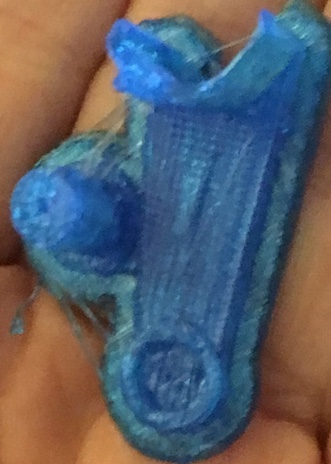
The manual also implies sample models are available in “recent models”. This didn’t happen for me so I had to download from the internet. I like that you can easily change the size and quality of your model. And that it tells you the print length before you start. I also like that it tells you the percentage complete down to the hundredth of a percent. Feels like progress!

Now to try to make something of my own! My second 3D print.