using eclipse launch configurations to deploy FRC robot code faster in eclipse

I use Eclipse launch configurations at work and coding at home all the time. It never occurred to me to mention them to the team until last week. A student asked “is there a way to use a keyboard shortcut to deploy.”

Before

For those not familiar with FRC (FIRST Robotics Challenge), the deployment procedure is:

  1. Select the project in your workspace.
  2. Click “Run”
  3. Mouse over “Run As”
  4. Click “WPILib Java Deploy”

This kicks off the Ant build to do the deploy. Certainly not a terrible process. But when you do this dozens of times and in a rush, it can feel tedious. I think that’s why I never suggested it. At the lab, I ensure the students always drive at the keyboard. So I never have to click four things to deploy and it doesn’t feel tedious. Whereas when I’m coding myself, I feel it and optimize my time/clicking.

Setting up a launch configuration

The first thing I did was show how to set up and favorite a launch configuration.

The initial setup:

  1. Run a build the “long way”
  2. “Run” > “External Tools” > “External Tools Configuration…”
  3. Click build.xml or build.xml (1) or whatever you see in the list. Confirm it is for this year’s robot. (You may find it easier to select all the build.* configurations, delete them and then run one new build.)
  4. Change the name to one that you like. For example, “2018 Robot”
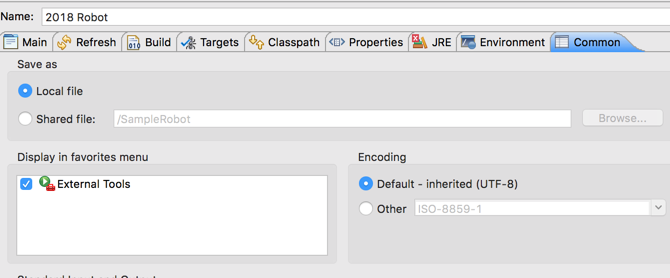
  5. Click the “Common” tab
  6. Click “Display in Favorites Menu”
  7. Click “Apply”

Then to run it, you just click the triangle next to the launcher and it is stickied first in the list. (Be sure to click the triangle next to the green arrow with the red box. There’s also one without the red box which is used for running Java command line programs.)
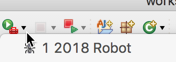
This gets us down to two mouse clicks. But it is still not a keyboard shortcut; the initial request.

Keyboard shortcut

I had to look this up, but you can provide a keyboard shortcut. Sort of. I couldn’t figure out how to create a keyboard mapping to a specific run configuration. But that doesn’t matter here. We want to map to the last run configuration.

  1. Open the Eclipse preferences. (The Eclipse menu on a Mac and the Window menu otherwise)
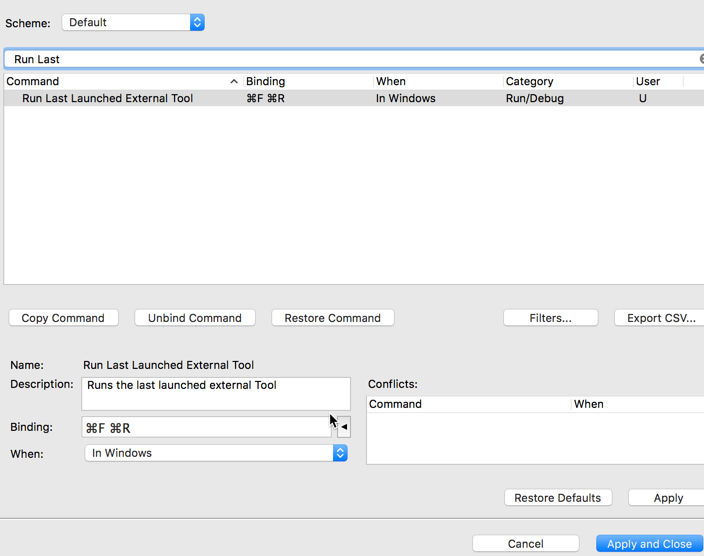
  2. “General” > “Editor” > “Keys”
  3. Type “Run last” in the filter to find the matching entry
  4. Setup a binding. I chose command F + command R. (The beginning of spelling out FRC), but you can choose anything.
  5. note that the contest/when is “in windows”.  This means the shortcut is avilable when you have any file open. Just when you want when looking at or making robot code better.
completing toastmasters pathways level 2 before level 1 is approved

See my main Presentation Mastery Pathways page for some context.

I completed all the projects in level 1 on January 4. My level 1 actually got approved today due to some difficulties in processing. I had lots of speaking opportunities in the club though and I successfully completed all the level 2 projects before I obtained access in Base Camp. This blog post is about that journey!

Each path has three required projects for level 2. All of them have the “Introduction to Toastmasters Mentoring” project. The Presentation Mastery path also has “Understanding your Communication Style” and “Effective Body Language.”

For level 2, you can do the three projects in any order. I describe them here in the order I did them.

Introduction to Toastmasters Mentoring

On January 10th, a speaker at our Speechcraft session cancelled so I jumped in with this speech. Since level 2 was locked, I went online to see if anyone had uploaded the PDF. I found out that a club shared the “Introduction to Toastmasters Mentoring” PDF online (link no longer works). The description on mentoring vs coaching was excellent. I like how the project has you speak about a time you were mentored.

For more on this project or how to download the evaluation sheet, see my starting level 2 blog post.

Effective Body Language

On January 16th, I was giving members of my New York club an unofficial preview of Pathways. I choose to use the “Effective Body Language” speech for this. I couldn’t find the PDF manual online. Instead I went to the “Speeches and Evaluations” section of Base Camp and downloaded the evaluation sheet. I gave my speech and got evaluated.

Now (as I write this blog post), I’m reading the actual project. I learned that I was supposed to get feedback from a mentor or reviewer while practicing. Oops. The online project also contains good tips on posture, stance, position and movement. I need to move more deliberately when I speak! There was also good descriptions of the four different types of gestures: descriptive, emphatic, suggestive and prompting. There was a video and great interactive exercises. Finally, there were references to culture and the visual impaired.

Understanding your Communication Style

One of my clubs meets on Thursdays lunchtime. At the January 18th meeting, we had a speaker cancel the evening before. This happens sometimes. Work is of course the priority! As a DTM, I knew it would be no trouble to put together a speech the night before. And it was a perfect opportunity to complete level 2!

The same club that shared the “Introduction to Toastmasters Mentoring” also club shared the “Understanding your Communication Style” PDF online.

I read the PDF. It contains an excellent 12 question “test” where you answer how you view yourself. Then you add up the scores to determine your communication style:

  • Analytical
  • Direct
  • Initiating
  • Supporting

You can then read how each communication style interacts with the others. (The online version is better because it automatically tallies your score and lets you control the order in which you read about the styles.)

Not surprisingly, I’m mainly analytical/direct. Then I had to write a speech. Since Pathways is new, I chose to include a couple sentences on what each was. Then I had the audience vote on which they thought was my predominant style. The majority of my speech was me telling a story of a strength (or perceived weakness) of my interactions with each of the four styles. It wound up being a great speech. Our VPE even suggested that I save it for the humorous speech contest.

This is a great project and really shows the benefit of the Pathways educational program!

Submitting level 2

Since I did all three projects on paper, I went back and clicked through in Base Camp. Then I emailed my evaluations to our club leadership for approval. And now they know what to do so getting access to Level 3 should be fast!


Approving a Pathways level request

I submitted my Pathways Level 1 award in early January. Due to a combination of club officer vacations and the officers not knowing what to do (since Pathways is new), it took over a month to get it approved. I completed level 2 in that time.

Today, I screenshared with the club President and we approved my Level 1 award. Now that we know what to do,we know it should take under ten minutes. Here’s the process to quickly and easily approve a level for members of your Toastmasters club!

Step 1 – the club officer gathers info that the member  has completed the projects in the path.

There are a few options for doing this

  1. The member provides sufficient evidence that he/she has completed the speeches in the path. I went this route and emailed all my evaluations to the President and VPE. (I had chose this option because I’m a member of two clubs so the officers of the Pathways club have no other ways of validating)
  2. Past meeting agendas
  3. Speak easy or other online tracking system.

I recommend having the member at least provide you with the dates for validation if not the evaluations.

Step 2 – sign in to base camp manager

The club President, VPE or Secretary has to do this step.

  1. Sign into toastmasters.org
  2. Click “pathways”
  3. Click “go to basecamp”
  4. In the middle tile, you’ll have two options – you could choose “log in as a member” – but don’t. That takes you to Base Camp rather than Base Camp Manager. Instead, click the button under it to go to Base Camp Manager.
  5. Click “Pending Requests”
  6. Clcik the members name to view the transcript to verify. This could be cross referencing PDF evals or looking at agendas
  7. Then click the green checkbox to approve or the red x to reject. Either way, you can leave an optional comment to submit.

This process (starting from step 5), is described in the official docs with screenshots.

The member gets an email. I got mine a few minutes after the club officer hit approve.

Step 3 – getting DCP credit

Then go back into toastmasters.org and file an educational award. This increases the member’s title and gets credit towards the club’s DCP. It’s easy though – no need to type in titles:

  1. Club central
  2. Submit education awards
  3. Select member from pull down
  4. Education – level 1 (or whatever level)
  5. Submit