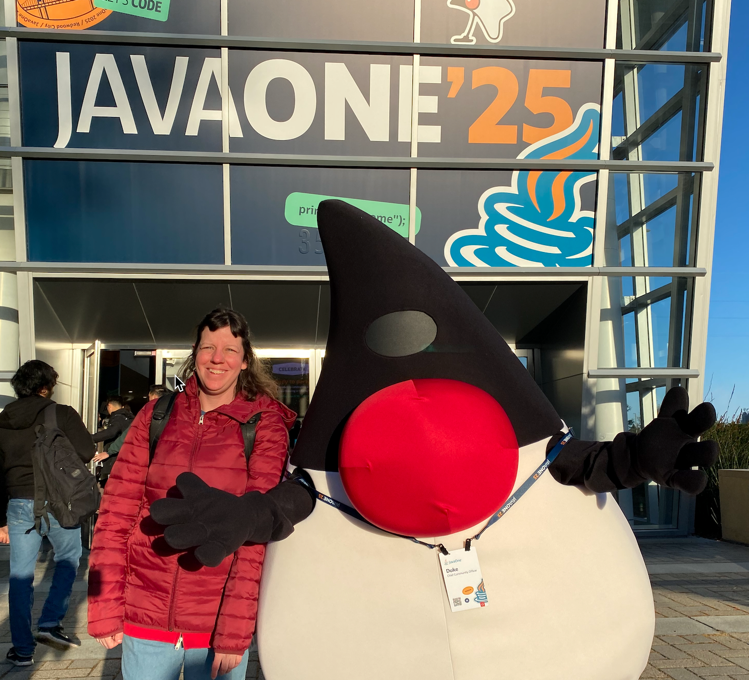
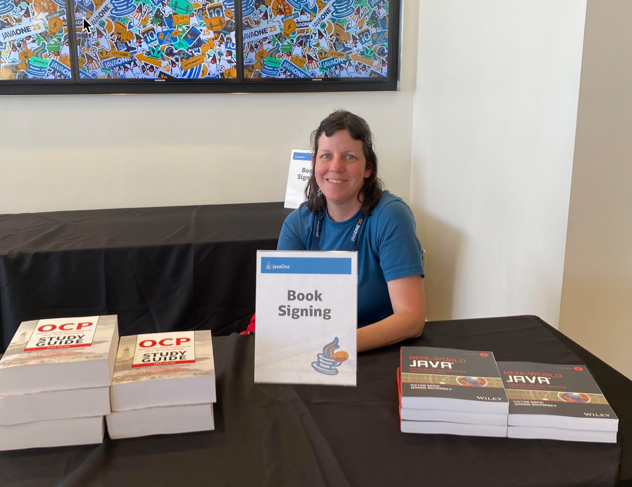
[dev nexus 2024] Table of Contents

This is DevNexus’ 20th anniversary!

Wednesday

Thursday

[uberconf 2023] intellij dojo

Dan Hinojosa

For more, see the table of contents


Uses https://github.com/dhinojosa/intellij-dojo-workshop

General

  • Help > Keyboard Shortcuts PDF
  • Goal: get away from mouse
  • I tried to note both windows and mac since I use both. I followed along on Mac live
  • Presentation assistant shows shortcuts used [I used this one]
  • Key Promoter X – reminds you to use plugin [I turned this off; it was super annoying]

New projects

  • Projects typically created outside the IDE so just have to open the project
  • Open new project (or recent projects)
  • Can setup to open from command line by typing “idea .” – Open toolbox (not in IntelliJ; helps with downloading > bolt > settings > tools – shows where command line)

Navigation

  • Command or alt 1 – project menu – start typing name of file to get straight to it. Arrows to go thru nav menu.
  • Command or alt 2 – bookmarks
  • shift escape – close window – ex if have bookmarks open.
  • Command or alt 3 – find window
  • Command or alt 4 – run window
  • Command or alt 5 – debug window
  • Command or alt 6 – problems window “six is to fix”
  • Command or alt 7 – structure window (outline of file)
  • Command or alt 9 – git log
  • Command or alt 0 – commit window
  • Command or alt e – recent files list
  • Command shift e – recent edit locations (within file)
  • Command or control shift F12 – maximize/restore editor

Action keys

  • Command or control shift A – all actions – shows shortcut next to it so can type name and review shortcut
  • control control – run anything within project. type “?” to see what the choice are. ex: run maven test quickly. Also shows recent commands
  • shift shift – search everywhere ex: files, options in ide, even has a calculator

Navigation

  • control (or Alt windows) right/left – didn’t work for me on mac; ctrl tab lets me see tabs and pressing it repeatedly switches between them
  • ctrl F4 (was command w on my machine)

Finding items

  • command o/Ctrl N – go to class (supposed to be o for mac, but n works for me)
  • command shift o/ctrl shift n – go to file
  • command option o/ctrl option n – go to symbol
  • command/ctrl b – go to declaration
  • command/ctrl alt b – go to implementation
  • option/alt f7 – find usages
  • command/ctrl f7 – find in file

TDD Sample

  • command/ctrl n – create new – then choose what want ex: Java class. do again within class and can create test method automatically
  • F2/shift F2 – switch between problems (ex: compiler error). If no errors, says no errors found
  • alt/option enter – context sensitive actions ex: fix error, refactor
  • command/ctrl shift t – toggle between test and code under test
  • ctrl t (mac) ctrl alt shift t (win) – refactor this menu
  • command l – go to line

Formatting

  • command option/control alt l – format all code
  • control alt/option o – organize imports

Selecting code blocks

  • option down/ctrl shift w increase code block selected – ex: line -> section of code -> method -> class
  • option up/ctrl w increase code block selected

Editing

  • command/ctrl backspace – delete line
  • command/ctrl d – duplicate line
  • command/ctrl x – cut line
  • command/ctrl c – copy line
  • command/ctrl v paste line
  • command/ctrl shift v – paste from history; still available even after pasted
  • command/ctrl t – surround block/selection – didn’t work for me on mac
  • command option t/ctrl shift t – surround with – ex: wrap with if/try/etc

Code completion

  • pvsm – generate main method
  • postfix – write. sout or .var or the like at end of line if forgot something at beginning of line and fixes. Can add own with live templates
  • ctrl space – autocomplete
  • ctrl option/alt space – inaccessible members autocomplete; will import at same time
  • ctrl shift space – type sensitive complete – filter autocomplete based on the desired type
  • command/ctrl shift enter – complete statement – ex: add { for if statement
  • command/ctrl p – parameter info – click method and get pop up with the parameters for all overloads. Works when writing code or on filled in code
  • ctrl shift p – type info – useful on a stream to see return type. If ambiguous have to chose which expression from a list first

Moving

  • Command/ctrl shift up or down – move code up or down compared to other code

Docs

  • Ctrl Q – windows, Ctrl J – mac – pop up for docs
  • ctrl shift i win, command y – mac – pop up with source code/implementation. use right/left if multiple matches (ex: levels in hierarchy)
  • alt q windows, ctrl shift q mac – pop up with method name, press again for class. useful in long legacy code

Run/Debug

  • Contextually – main methods, tests , folder of tests etc
  • If create file named http, will run it. Uses specified format to specify get/post, content type, etc – https://www.jetbrains.com/help/idea/http-client-in-product-code-editor.html. Good if don’t need credentials
  • ctrl shift F10 win, ctrl shirt r mac – First time, run and mark context configuration. Like staking a claim
  • shift F10 win, ctrl r mac- run last config
  • alt shift f10 win, ctrl option r mac – mark context
  • Replace d with r for debug versions
  • In debugger, trace current stream chain lets you see each step of a stream and what is there. (click three dots in debugger to see it). Choose flat mode to see everything on one screen

Refactoring

  • ctrl t (mac) ctrl alt shift t (win) – refactor this menu – this one includes all the other refactorings. Including obscure ones like changing a method return type
  • F5 – copy item
  • F6 – move item
  • shift F6 – rename globally
  • command/alt delete – safe delete
  • ctrl alt n – inline
  • command option/ctrl alt m – extract method
  • command option/ctrl alt v – extract variable
  • command option/ctrl alt f – extract field
  • command option/ctrl alt c – extract constant
  • command option/ctrl alt p – extract parameter

Multicursor

  • shift command 8/alt shift insert win – start column selection mode.
  • hold shift down and get multiple cursors at that column
  • alt/option shift click – start multicursor mode – each click gives you a cursor
  • ctrl g mac, alt j windows – next instance of word giving you a cursor for each (select method/class/etc want to match first)
  • ctrl command g mac, alt shift j win – all instances of word giving cursor for each

HTML/XML editing

Version Control

  • Command/Ctrl 0 – changes window
  • Command/Ctrl K – commit
  • Command/Ctrl t – update project
  • command/ctrl shift k – push
  • ctrl v – mac, alt ` windows – version control quick help

Random stuff

  • If reference a closure variable (ex: effectively final variable used in a lambda), variable appears in purple.
  • Presentation mode – don’t need to mess with font manually when present
  • File and Code templates – for commonly used code

Side note

Chrome has a built in QR code generator – share the link and QR is an option

My take

It was good to get practice and learn more shortcuts. Also learned I had my keymap set to mac classic (that explains why some expected shortcuts hadn’t worked; fixed it). I like the windows/mac contrasts. Felt less magical seeing it presented together. (I use both).. Good mix of hands on and watching.

[uberconf 2023] Architect’s Guide to Site Reliability Engineering

Speaker: Nathaniel Schutta

@ntschutta

For more, see the table of contents


General

  • Agile – do more of what works
  • Conflicting incentives – ops – “don’t change if works”
  • Monoliths to service oriented to microservices – solves some problems and created new ones
  • SRE (site reliability engineer) – new role
  • We are good at giving something a new name and pretending have never done before. Ex: cloud computing – big pile of commute and slice of what need – ex: mainframe
  • Everything we do involve other people. Most problems are people problems, which we tend to ignore

History

  • Goes back to Apollo problem. First SRE was Margret Hamilton. She wanted to add error checking and did update the docs
  • Phone autocorrects on map – recalculating….
  • Traditionally systems run by system admins.
  • Now have hundreds/thousands of services
  • CORBA – facilitate communicate for disparate systems on diverse platforms. Also a good definition for microservices. EJBs too. Then SOA
  • APIs exploded because we all have smartphones/supercomputers in our pocket
  • Amazon had policy of everything being an API

Challenges

  • Who page if go through 20 service. It’s clearly another team’s problem
  • How monitor
  • How debug
  • How even find services
  • We argue about definition of made up words. Ex: microservice. Nate likes definition that it can be written in two weeks. How many services can a team support? If change alot, 4-6. If stable, 15-20
  • How do we define an application?
  • Conflicting incentives – release often
  • The way we do things might be the first way we tried vs a better way.

SRE

  • What if we asked software devs to define an ops team?
  • Software engineering applied to operations
  • Did that with testing too; made more like dev
  • Replace manual tasks with automation
  • Many SREs former software engineers.
  • Helpful to understand Linux
  • Can’t reply on quarterly “Review Board”. This is a very slow quality gate. However, most orgs don’t audit gate to see if useful.
  • Goal: move fast, safely
  • Doesn’t happen in spare cycles “when have time”. Can’t be on call all the time or be doing tickets/manual work all the time.
  • Humans can’t do the same thing twice. Ex: golf

What does SRE do/consider

  • Availability
  • Stability
  • Latency
  • Performance
  • Monitoring
  • Capacity planning
  • Emergency response
  • Understand SLOs
  • Embrace/manage/mitigate risk. Risk is a continuum and a business decision
  • Short term vs long term thinking. Heroics works for a while, but isn’t sustainable. Often better to lower SLOs for a short time to come up with better solution.
  • Focus on mean time to recovery. No such thing as 100% uptime.
  • Runbook is helpful. Not everyone is an expert on the system. Even if do know, brain doesn’t work well in middle of the night or under pressure. Playbook produces 2x improvement in mean time to recovery
  • People fall to level of training, react worse when stressed.
  • Alerting. Need to know what is important/critical and when it is important. Ex: can ignore car oil change message for a bit but not for too long
  • Logging best practices. Logs tend to be nothing or repeating the same thing 10x.
  • Four golden signals – latency, traffic level, error rate, saturation
  • Automate everything; manual toil drives people out of SRE
  • Which services most important
  • Establish an error budget. Can experiment when more stable. Can’t deploy when error budget used up. Helps understand tradeoffs.
  • Production readiness reviews.
  • Get everyone on same page with what service does – dev, archs, etc. Improves understanding and can find bottlenecks
  • Checklists – quantifiable and measurable items.
  • Think about how it can fail and what happens if it does
  • Chaos engineering

Outage impact

  • What do customers expect? Used to be 5×12 – 6am-6pm M-F. Most things are 24×7 now
  • What do competitors provide? Need to do same
  • Cost – more failover is super expensive
  • When cloud goes down, it is news
  • Depends if needs redundant backup. How much venue lose than cost of being down?

Postmortems

  • Don’t want to make same mistakes. Learn from yours and others. Avoid them becoming a blame session
  • Outages will still happen; must learn from them so that bad thing doesn’t happen again
  • Living documents – status as the outage is happening, impact to business, root causes
  • Tactical vs long term/strategic fix
  • Action items to avoid in future
  • Cultural issues
  • Wheel of misfortune – role play disaster, practice
  • Recognize people for participating
  • Need senior management to encourage
  • Provide a retro on postmortem to improve process
  • Education – if you already understood that, we’d give you something harder to do

SLO/SLA

  • 99% – 7.2 hours a month, 14.4 minutes a day
  • 99.9% – 8.76 hours a year, 1.44 minutes a day
  • 99.99% – 4.38 minutes a month; 8.66 seconds a day
  • 99.999% – 4.38 minutes a month; 864 millis a day
  • Google K8S Engine availability is 99.5%. Can;t exceed service provider
  • SLA (service level agreement) means financial consequence of missing. Otherwise, it is a SLO
  • More to always better; can’t be infinity
  • Can tighten later; hard to losen
  • If a system exceeds their SLA, can’t rely on that. Could stop at any time.
  • Might have internal SLO that is tighter than the advertised one.
  • Everyone wants five nines until they see the cost. “If you have to ask, you can’t afford it”

Fitness functions

  • Tests to make sure architecture still does what want it to do
  • If know when breaks, can tie back to code change and fix

Next steps

  • Build an SRE team if don’t have one
  • Applications changing rapidly
  • Need to enable environment to move fast and safely
  • Must work well together

My take

Nate’s style is a ton of slides with a mostly few words/sentence on each. It’s a fun style. It also means the font size is super large and I don’t need to wear my glasses for most slides. I had to step out for a few minutes for the restroom. [I’ve been doing an excellent version hydrating!] Hard to step out, but easy to catch when came back.