15 vs 30 day trial licenses for Jenkins Enterprise

On February 24th, I’m taking the beta for the Jenkins Certification. This beta is different than beta exams from Oracle. In particular, it is only being offered on one day. The only choices you have are:

  • whether you want the morning or afternoon offering. It’s also only being offered in 12 cities (8 in the US and 4 in Europe). I chose the afternoon because I’ll probably be up late the night before. (yeah, I know. not ideal for taking an exam)
  • whether you want the Open Source or Enterprise version of the exam. I chose Enterprise because we use it at work and I like some of the features like templates.

This isn’t a great time for me to study for or take an exam. The exam is being held, literally the day after the robot is due for robotics team on which I mentor the programmers. This means I have little spare time. Especially for the week before the exam.  It’s worth a shot though. I know a lot about Jenkins without studying. And studying for the exam has filled in a lot of what I don’t know nicely.

I started studying two weeks ago (when I registered.)  I wanted to use a trial license for the enterprise edition so I could play with those features at home. I checked the evaluation agreement and it said that trial licenses default to 30 days. I checked again today and it says 15 days so either they fixed it or I misread it. It’s possible they fixed it because I did inform them of the discrepancy.

I filled out the trial form which gave me a 15 day license. I used the contact us form on Cloudbees site to ask about the 15 vs 30 days. They don’t allow gmail as an email provider so I used my javaranch address. (I get that they only want to talk to companies but what if someone is running a business our of gmail?)

A two week trial is also a big annoying because you get the green bar that resists being hidden reminding you that license is about to expire. This left me with a problem because I wanted to review some features a few days before the exam. I’d have installed the enterprise trial license if I had know that it was only good for 15 days.

I checked the license again and it doesn’t say that you can’t use two trials back to back. That would solve my problem. You can’t get another trial for the same instance id. You can for the same email.

Note: Check the trial agreement before attempting this to make sure it isn’t banned in the future.

Approach 1 – Clean install

First, I renamed my working directory so Jenkins thinks it is clean install. I’m not attached to any of my configuration or jobs. So a clean install is fine. I did backup my old install in case I wanted to check on my settings:

mv $HOME/.jenkins $HOME/.jenkins-bkp

Then I started Jenkins:

java -jar jenkins.war

This gives a clean install with no plugins. I then followed the instructions to convert to Enterprise including getting a trial license successfully.

I did want the exact same plugins along with build tools, so rather than redoing that all manually, I ran:

cp -r $HOME/.jenkins-bkp/plugins/* $HOME/.jenkins/plugins
cp $HOME/.jenkins-bkp/config.xml $HOME/.jenkins/config.xml

I then hand edited the config.xml to set <useSecurity>false</useSecurity> instead of true.

Approach 2 – Delete the license files

The technique described here to delete a few files also might work.


Handling two factor when on an international vacation

I got Australian government tells citizens to turn off two-factor authentication forwarded to me because of my two factor posts on this blog. The theory is that they will not have access to texts while abroad. I was surprised to see such a thing, but lo and behold, their twitter account does in fact say that including:

Going out of mobile range? Turn off myGov Security Codes so you can still sign in! Go to ‘settings’ in your account

and

If you turn off security codes, you’ll still need to securely sign in with secret questions & answers.

My gut reaction

This sounds like a horrible idea. While traveling, make your access LESS secure? I find it hard to believe their “secret” questions are actually secure. Most places use things that lots of people know. Or that you have no way of remembering yourself.

How Australia could fix this without compromising security

Australia could update their website. They could add support for any or all of the following:

  1. Email a secondary auth code for verification. It you have access to the website, you presumably have access to email.
  2. Google Authenticator support. This app doesn’t even require internet access.
  3. Predefined codes. Gmail has a number of codes you can type in that are generated in advance to be used if other methods fail.
  4. Support a temporary alternate number. This one is less convenient, but the site could provide a way to enter a secondary phone number to use during a pre-defined window. That way SMS could still be used.

All of these are still two factor solutions.

What users could do if a website doesn’t have an option other than SMS

This part isn’t specific to Australia. It applies to any site that uses only SMS for two factor.

  1. First, decide whether you will actually need the site while traveling. If not, problem solved.
  2. Check if the site remembers your device. If so, sign on using the temporary smart phone device while you still have access to your main phone/SIM so you won’t get two factor challenged while traveling.
  3. If there are predefined codes, bring them with you.
  4. If you must turn off two factor, do so. But also do the following:
    1. Complain to the website so they know this is a problem
    2. Leave a post it note on your home computer to turn back on two factor
    3. If the website shows “last login” check it was you.
    4. If the website emails when logging in from a different device, check for those.

programming a finch without being able to read (parent required)

Someone at work was asking me about robots for kids. I offered to lend him my Finch to try out. I noticed there’s an experimental language called Snap! on there now which says it can be used by ages 4-7. The idea of Snap! is that it is a simplified Scratch which is also supported. I really like that the Finch supports such a range of languages from ones like Snap! and Scratch to “full fledged” languages like Java and Python. I also like that it has a variety of sensors so you can incrementally make things harder.

Anyway, I wanted to give Snap! a try to see how easy it was too use. My was it easy. Including downloading the software, it took me less than 15 minutes to get the finch to move forward and back having a different color nose when pressing keys. (and another 15 to make sure installing Java 6 didn’t mess up anything else on my machine.)

Install (parent required)

I downloaded and installed the BrainBirdRobotServer which was clearly described on the Snap! page. Installing was the usual for Mac; just drag to the Applications folder. The only catch was that I had to re-install the long since unsupported Java 6. Not a big deal. The software even gave me the link. And it didn’t muck with my paths for anything else so Eclipse/Ant/Tomcat/Postgres etc still work normally.

Setup and initial run (parent required)

This isn’t hard, but it does require being able to read so a four year old isn’t going to be able to do it alone.

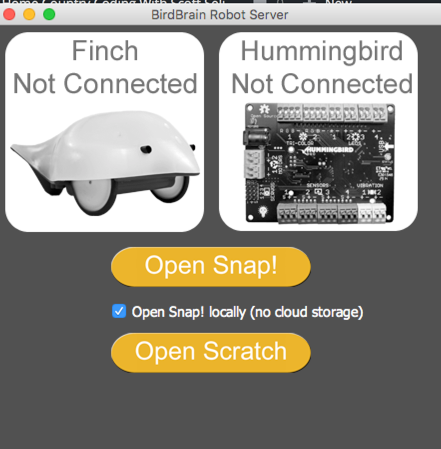
  1. Open BrainBirdRobotServer
  2. Click Open Snap! I choose local since I wasn’t planning to save my program
    finch1
  3. Plug in the Finch. (One end of the wire goes into the Finch and the other end goes into a USB drive on your computer. I put it in a USB hub
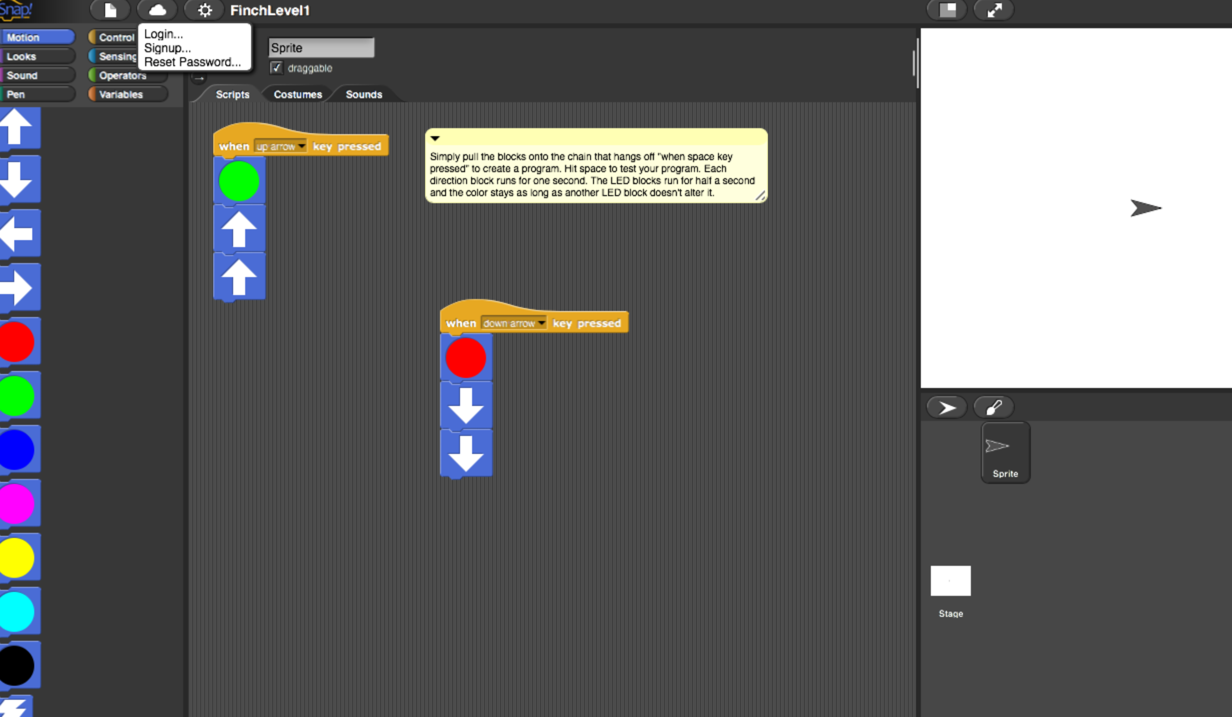
  4. Write program. It opens with a simple one that drives forward with a green nose if you press space. I adapted it to go forward with a green nose when you press the up arrow and backward with a red nose when you press the down arrow.
    finch2
  5. Press up and down and watch Finch move. That’s it.

Play

What more to say here. These basic blocks already do stuff. And then the parent can show the kid more blocks.

Making it harder

Assuming the kid can read (or you are present), the higher levels of Snap! allow writing more complicated programs. I couldn’t figure out how to change the level other than editing the URL. You can easily sense the pattern here. The only catch is that I had to load the page twice with the new level URL to see it.

  • http://snap.berkeley.edu/snapsource/snap.html#cloud:Username=birdbraintech&ProjectName=FinchLevel1
  • http://snap.berkeley.edu/snapsource/snap.html#cloud:Username=birdbraintech&ProjectName=FinchLevel2
  • http://snap.berkeley.edu/snapsource/snap.html#cloud:Username=birdbraintech&ProjectName=FinchLevel3

The higher levels allow adding timing delays and such.

Caveat

As far as I can tell, the Snap! language doesn’t allow you to use all the sensors on the Finch. But it looks like a fun way to get started. (Not true. The highest levels can at least use some of them)