
eclipse.org went with a neon colored theme to announce the launch of Neon. I found it a bit glaring. The “e” and “n” lights go out after a while which I suppose is cute. The matrix comparing the packages is still clear. It turns out not to matter if you choose the Java EE version or something else for the download. The list of Eclipse packages had a sponsored package in the list. Wonder how much IBM paid to have Bluemix listed second. I also learned there is a Scout package. I hadn’t heard of Scout which is a framework for HTML 5 among other things.
Overall, there’s a lot I’m excited about in this release.
The “tar” file (native app)
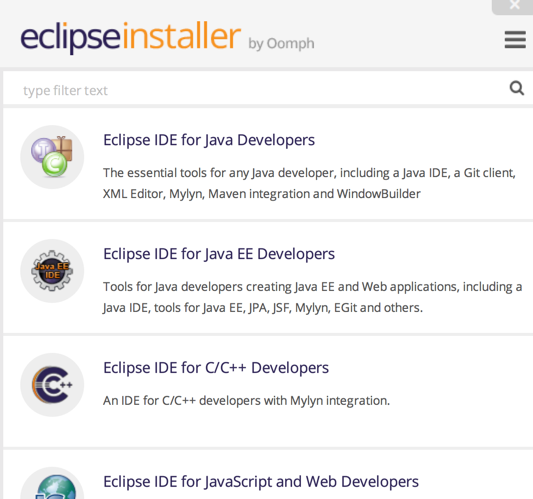
With Eclipse Mars, they switched to a tar file/Eclipse installer for Mac. This is my first upgrade since that Eclipse became a native Mac app. The installer says “Eclipse installer by Oomph” and gives you a choice of a number of Eclipse packages. Which means it doesn’t matter what you choose because it takes you to this point.
Then it asks where you want to install. This is good as it lets you have both Mars and Neon installed as native apps. (I was wondering how they were going to deal with that when Mars went native.)
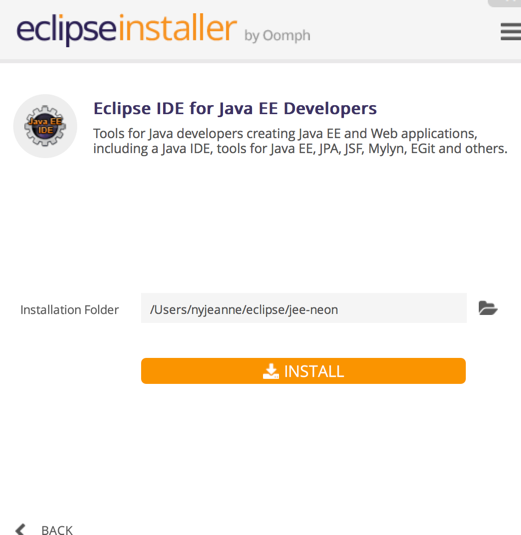
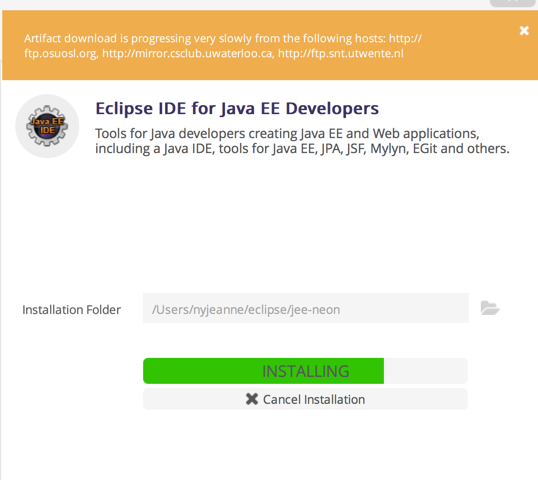
The default location seemed like as good a place as any. I clicked install and agreed to do the terms. As I saw the progress bar, I got prompted to agree again. As it was downloading the necessary pieces, I got a warning that downloading was slow.
Then it was done and I was able to launch Eclipse. I got prompted for a workspace location. I like to upload my workspace in place so I agreed that I would be preventing the workspace from opening in Mars again. (I backed it up first in case.) Then I saw the Neon slash screen. I was a little worried about this since I didn’t like the home page. No reason to worry. It’s pretty!

Installing the plugins
Like last year, I decided to install the plugins I need for Eclipse Marketplace so I can shed the plugins I tried out and don’t actually want. Cleaning plugin house once a year is nice.
The significant plugins I use are listed in this table. A number of plugins were beta for Luna or I had to use the Kepler version. I don’t remember that problem in previous years.
Last year, I tried out the Code Recommenders plugin. I didn’t install it this year as I hardly used it. I added Contrast and Bytecode Analyzer as plugins I installed in the past 12 months that I like. Everything installed easily from Eclipse Marketplace unless otherwise noted.
| Plugin | Purpose |
|---|---|
| Mongrel | Tomcat integration supporting recent versions of Tomcat. |
| Ecl Emma | Code coverage |
| SonarLint | I installed SonarLint last year and quickly came to rely on it. It gives you static analysis findings in Eclipse. I also included the SonarLint Java Configuration Helper so it can see the version of Java I am using. (I”m on Java 8 right now so this is redundant at the moment. But I’m ready for when Java 9 comes out.) I stopped installing PMD and FindBugs. I’m using SonarLint instead. |
| Subversive | To access Subversion repositories |
| Eclipse Memory Analyzer | For finding memory leaks. It was in Eclipse MarketPlace – however I couldn’t install from there. It just kept prompting me to install. So I’m using the update site. |
| Freemarker IDE | Freemarker syntax highlighting and macro assistance. Note that it is listed under the JBoss Tool Project. You pick that plugin and then unselect everything except “Freemarker IDE”. The JBoss Tool plugin was in beta on Mars release day. I installed this beta. |
| Pydev | Python plugin/perspective |
| Contrast | To spot potential security issues. See my impressions of the Contrast plugin. |
| Bytecode Outline | I’ve been looking at bytecode a good fit for the book to make sure I understand why things are happening. This plugin makes it easy. I first tried Bytecode Visualizer but install failed. (The website says there were 25 failed installs with the same dependency problem in the last 7 days). After installing Bytecode Outline, I realized this was the one I had installed for Luna anyway. |
What excites me
- Autocomplete lets you enter any part of the class name/method name/variable/etc rather than just the first part. Being able to enter a substring for the pattern is awesome! If you know the method name ends with “all” you can type this. You can also type something that is more unique if you have a lot of classes that begin with the same thing. For example, suppose you have MyBusinessWidgetStrategy, MyBusinessWidgetDto and MyBusinessWidgetDao. You can type “widgetDao” and be done rather than the whole thing.
- You can use a touchpad to pinch/zoom in and out for the editor. This is going to be great for demos.
- The workspace name is shown at the beginning of the window title. This isn’t useful to me at all at home, but is going to be very useful at work where I frequently have multiple workspaces open at the same time. The default name of the workspace is the directory it is in. That actually works out perfectly for me
- Being able to easily clean up pre-diamond operator (Java 1.5 and 1.6 code) to get rid of the redundant types. (Wrote up how here.)
- You can control word wrap in Java and other text editors. While you typically want to format in Java, this could still be useful for viewing legacy code you don’t want to re-format.)

What I didn’t like
- Mongrel didn’t work for launching Tomcat.
- I was hoping for code cleanup items for Java 8. In particular with regard to lambdas and streams. I didn’t see anything.
Other interesting features
- HTML formatting finally works the way I’d expect. I last complained about this in Juno so it might have been fixed for a while and I just never tried it again.
- You can set Preferences > General >Editors > Autosave to save your editor for you. I don’t like this because I want to control when I save since this sometimes triggers builds and such. I think it is nice that it is an option though.
- You can automatically terminate the previous run of a JUnit test (or other launcher) when you relaunch it. While I don’t need this anymore, it would have been useful when I was learning about recursion!
- It’s a good number of clicks to find a specific compile error/warning in the Eclipse preferences. You can now get there directly when you have something show up. There’s also another “info” level so you don’t have to choose between “warning” and “ignore.”
- You can now search in binary files. (I thought we could always do this, but I must be mistaken since it was in the release notes.)