
About a year ago I wrote an article about transferring files from a Tivo to an iPod/iPhone using the Tivo Desktop software for Window. This year, I decided to try the Mac solution, which unlike the Windows solution requires a third party product, namely Roxi’s Toast 10 Titanium. Being familiar with the often buggy Windows software package, I picked up a copy of the Mac version expecting to be “Wow’ed” by the endless number of features listed and some reviewers who claimed Toast 10 would be my absolute best friend. What I discovered was another severely limited piece of software with a number of crippling, show-stopping features.
1. Dead on Arrival on Snow Leopard
First off, if you happened to upgrade to Snow Leopard, which now includes 18% of all Mac users, you’ll be surprised to learn Roxio’s Tivo Transfer fails to launch when you open it. Even though its been over a month since Snow Leopard was released, Roxio has yet to create an official replacement. Granted, they created a pre-release version available that you can download separately, but I’d feel safer had they released a stable version for the ever growing number of Snow Leopard users.
2. Auto-Transfer: 0 options
On the Windows version of the Tivo Desktop application, you can create an auto-transfer pass for a show, which often downloads the top 3 most recent episodes of a single show. On the Windows version, you have the option of configuring this to download more or less episodes of the show as you’d like. On the other hand, the Toast 10 version only allows you to download all of the episodes of a show, with no ability to restrict them. In fact, in one test I created an auto-transfer which automatically selected 30 episodes of a show, then removed half of the episodes in the download queue, only to have the software automatically recreate them. Apparently, it really wants to download 100% of the episodes of a show!
Without further ado, I present all the options for the Tivo Transfer service on a Mac:
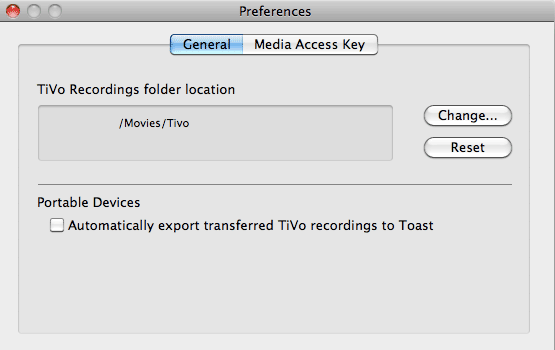
3. Auto-Transferring to Portable Devices: 0 options
Transferring a file to a portable device involves taking the file downloaded from the Tivo and feeding it into Toast which can support a number of conversions. As a bonus, Toast added the ability to send downloaded files to Toast for conversion, which in turn get loaded into iTunes. Unfortunately, as may have noticed in the screenshot above, they lack the ability to set ‘which kind of portable device’.
This might not be so bad if the file that ended up in iTunes could be transferred to an iPhone/iPod, but for whatever reason, the m4v file produced by Toast 10 automatically was not iPhone compatible. In other words, even though you waited an hour for the file to transfer and another hour for the file to be converted for “a” portable device, you have to spend another hour re-encoding if you want to use it on your iPhone/iPod. On top of all of this, there’s no where to specify where the portable versions of the episodes go! They just get dropped into the Movies folder by default.
4. Destroying Meta-data is Not Cool
The previous two issues involved the auto-transfer option, which as I explain, is extremely limited. Now, let’s say you want to open Toast and convert the file to an iPhone format yourself. When you open a TV episode in Toast, all the information about the show is available and easy to read such as show name, episode name, etc. This information comes from the Tivo unaltered and is easy to read. For whatever reason, after you convert a show to an iTunes format (even if you select iPod/iPhone), the meta-data is extremely muddled. The series name now consists of the actual show name plus the episode, such as “Scrubs_My_Way_Home_WPIX_1018282”, which means iTunes is going to group every episode of a show as its own show. I’m not sure who wrote the meta-data mapping tool Toast 10 is relying on, but clearly this is not a well tested option as it requires you to open iTunes and fix all the episode information after every conversion.
5. Auto-Nothing
Despite Toast 10’s claim to support a large number of features, users have to spend hours at their computer to get a clean transfer. Consider the transfer of a single episode:
- Launch Tivo Transfer, wait 5 minutes for list of shows to populate
- Pick show to transfer, wait 30-60 minutes (or longer if your Tivo or Mac are wireless) to get the Tivo-encoded video
- If you have Tivo’s auto-export to Toast enabled, add 45 minutes for the conversion
- Re-encode file to work with your iPod/iPhone using Toast or iTunes adds another 45 minutes
- Open up iTunes and clean up meta-data about show, another few minutes
All and all, transferring a single show is an extremely time consuming, wasteful process. I suppose if you had nothing to do but sit by your computer all day it might not be so bad, but the whole notion of ‘auto transfers’ is a myth with this application.
How does this compare to the Windows version? Fortunately, the Windows Desktop version will transfer any number of shows, such as the 5 most recent, encode to whatever format you select, and keep the meta-data more or less intact. It will even let you specify where these files get saved to, so with Windows you can actually leave your computer running and have iPhone/iPod ready files in the morning. Unfortunately, the Windows version is not without its stability issues, as I have personally seen.
Conclusion
Part of what I think the designers missed in creating the Toast 10 Tivo features is that transferring video and encoding it, especially if you are trying to transfer HD programs, is an extremely time consuming process. The goal, in my opinion, should be to create software that allows the user to leave the application running and after a few hours have a finished, ready to use, format available to transfer to your portable device. Unfortunately, Toast 10 does not provide such a solution and has so many show-stopping features, I actually decided to return it.
As a side note, Toast 10 does advertise a number of other Tivo features such as Mac2Tivo and web streaming of Tivo files, but after having such a bitter taste with the basics of transferring files from a Tivo to an iPod/iPhone, I’m reluctant to try any more of this product’s “features”.