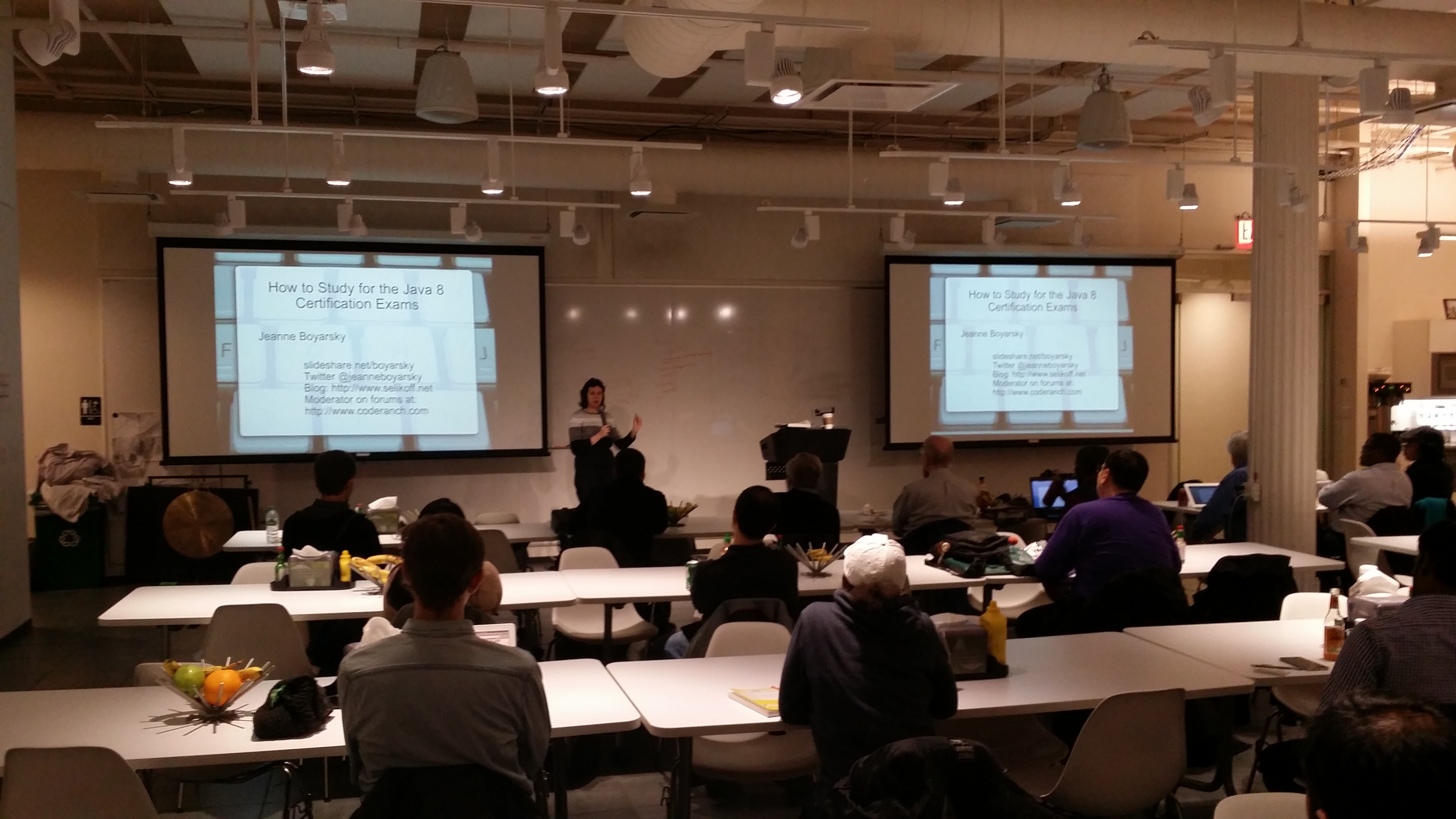
I recently needed to find a video of myself speaking. This caused me to notice that I’ve gotten much better (and more comfortable) speaking since 2007.
2007 – Google Test Automation Conference
In 2007, I attended the Google Test Automation Conference. They had 5 minute lightning talks and I signed up. This mean that I “wrote” what I was going to say that day and wasn’t prepared. More importantly, at that point, I’d only spoken once or twice before in front of a large audience and only internally at work. I remember being scared and worried about going over time (if you went over, they threw stuff at you)
That said, I was substantially better in 2007 then I was in 2002! I remember having to give a presentation in 2003 or so at work. I memorized every word I was going to say!
What I noticed rewatching the video
- I didn’t sound confident in the intro
- I fiddled with my hands a lot at the beginning
- Once I got into the tech content, I started looking around and gesturing more
- I stuck to that podium like glue
- I didn’t know to hold my fingers up when listing points yet
2009
In 2009, I joined Toastmasters. I realized I wanted to get better at engaging the audience. My focus was improving at “humorous technical content”. Because if you can make someone laugh, you get their attention!
2014
In 2014, I gave a presentation about Java to high school students and they were kind enough to record it. This time I was prepared. And more importantly, I had skills to draw from. In addition to Toastmasters, I had given many more presentations at work.
This time I noticed:
- I looked at my laptop less
- I moved around and engaged the audience more
- I was able to make impromptu jokes
- I looked more confident
2015
In 2015, I gave a 10 minute talk about Agile. Again, I was prepared. And again, I noticed many of the same skills. I was comfortable and able to make jokes. For this one, I was involving the audience, so I can really see how well I was adapting to what was going on around me.
(not sure what happened to the video)