FIRST Robotics is using VS (Visual Studio) Code as the default IDE next year so I’ve developed a sudden interest in learning it :).
My overall impressions
It is much faster to get started with VS (Visual Studio) Code than Eclipse. And for the simplified use cases for FIRST robotics this makes sense.
Initial install
I installed it about two months ago. That was easy. I went to the website and downloaded. I didn’t have time to do anything then so my only experience was when I double clicked a .java file when preparing for my QCon Java 11 presentation. It’s a nice editor so cool that it opened out of the box. Not so cool that it changed my defaults for opening files without telling me.
Also nice that VS Code prompts with a suggestion to install the Java extension pack when I opened the Java file.
Upgrading
Since I didn’t do anything, the first order of business was to upgrade to the latest version. VS Code makes this easy. One a Mac, you go to code > check for updates. It downloads quietly in the background. Then you go back to Code and choose restart to download.
Like Eclipse, the release notes automatically open. However, since I’m completely new to the tool, everything is new to me so I didn’t read it.
Plugins
The FIRST website suggests some plugins. To start with, I installed:
- Java extension pack – includes the plugin for Maven
- C++
- WPILib – this is a custom download (vs being part of marketplace at this time).
I like that it uses a Marketplace like Eclipse. I also like that you just click “reload” to have the downloaded plugins take effect (rather than having to restart the whole IDE). I also like that the extensions menu has an install from VSIX option. Really easy to install a plugin that you downloaded from the internet.
I’ll install more plugins after getting the lay of the land.
Documentation
The VS Code getting started is good. I like that it includes the keyboard shortcuts for opening the command palette.
- shift+command+P = mac
- shift+ctrl+P = windows
It was harder to find the windows keyboard shortcuts than expected. The website help “knows” I’m on a Mac so tells me about the Mac ones. But I’m going to be helping students on multiple operating systems. (It was clear in the FIRST robotics docs, but I would have liked this to be clear on the Microsoft website as well)
Creating a first project
I used the WPI wizard to create a new project. It was easy to use and fast. The file structure is standard for a Gradle project so it felt familiar. I opened the Robot.java file and tried to make a change. Then VS Code started “downloading the internet.” This is also normal for Gradle. I was just expecting it to happen on file creation or first build rather than when I pressed ctrl+space for autocomplete.
I like that you can use the command palette to run commands without having to use the mouse or memorize a lot of keyboard shortcuts.
Playing a little
Many of the keyboard shortcuts are standard so autocomplete and closing tabs works as expected. If a file has warnings it (and the package name) are in green. Similarly, errors are in red. I imagine this is customizable if someone is red/green colorblind. I’m surprised the defaults are ones where this is a problem.
How to open multiple projects
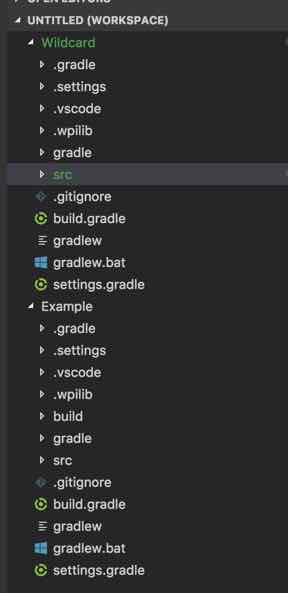
I immediately wanted to compare two projects in the same workspace. This is easy. You go to file > add folder to workspace. This creates a “multi root” project.